

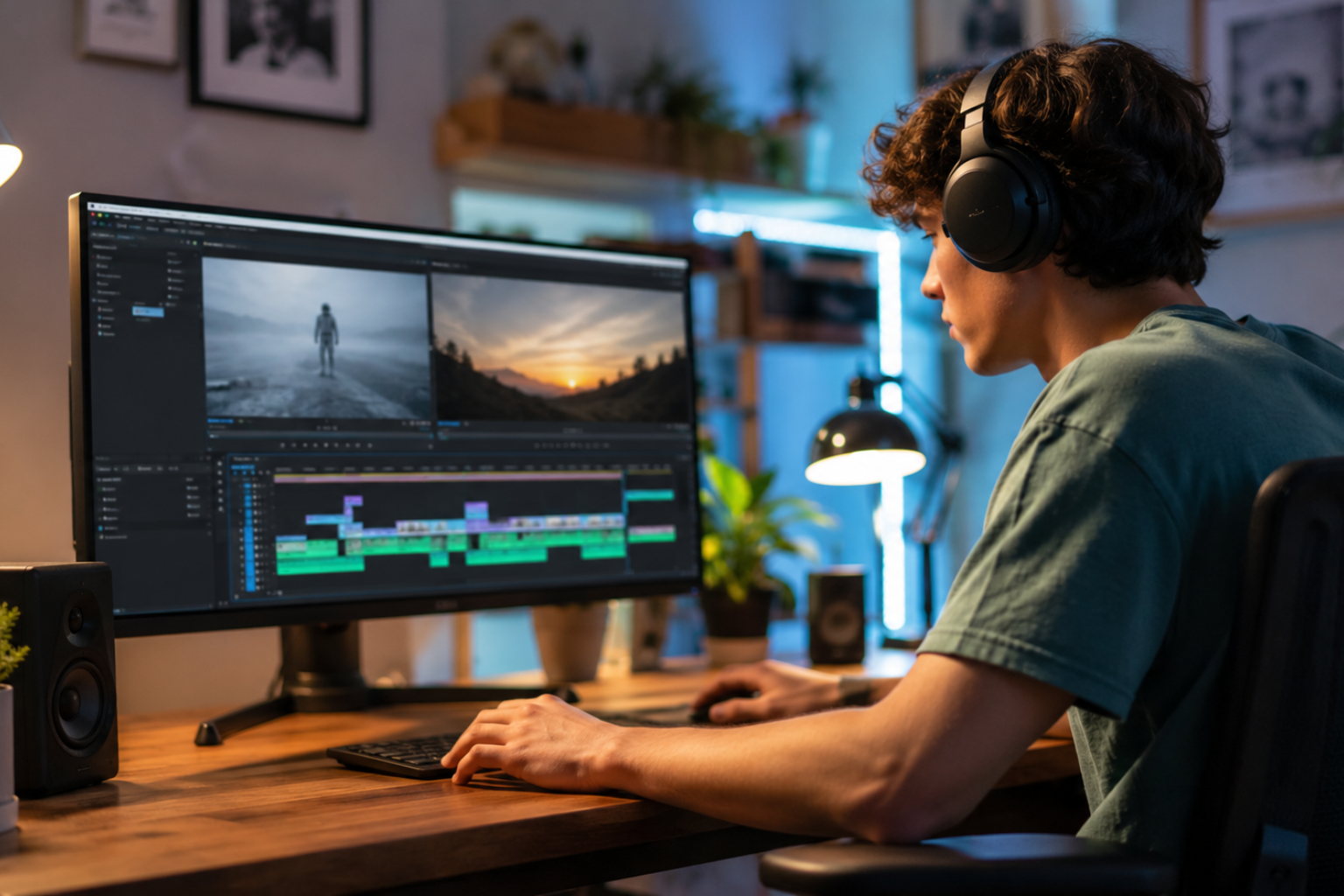
The best video editing software for beginners today is so intuitive that you can go from raw footage to a polished, shareable video in an afternoon — even if you’ve never touched a timeline before. That shift has happened fast, driven by smarter software design, cloud-based tools, and a massive surge in creators who needed accessible options that didn’t require a film school degree.
Whether you’re putting together travel vlogs, YouTube tutorials, short-form content for Instagram Reels, or even just family highlight reels, the right software makes all the difference. The market is crowded, which is both good and slightly overwhelming. This guide cuts through that noise and gives you a clear picture of what’s available, what actually works for someone just starting out, and how to pick the tool that fits the way you want to work.
Why Beginners Struggle Initially
Most people who give up on video editing early do so because they picked the wrong tool. They downloaded something designed for professional film editors — full of panels, scopes, nodes, and color wheels that mean nothing without prior training — and walked away feeling like they just weren’t cut out for it. That’s not a skill problem. That’s a software mismatch. Picking video editing software for beginners that matches your actual current skill level is the single most important decision you’ll make before you edit your first frame.
Video editing software for beginners needs to do a few specific things well: it needs to be fast to learn, forgiving when you make mistakes, and capable enough to produce results that actually look good. A drag-and-drop timeline, simple cut and trim tools, and a decent library of transitions and music are table stakes. What separates good beginner tools from great ones is how quickly you feel confident rather than confused after your first session.
Best Free Options Available
Free doesn’t mean bad — not anymore. Some of the most capable video editing software for beginners costs absolutely nothing to download and use. DaVinci Resolve’s free tier is the most famous example. It’s technically professional-grade software, but its cut page was specifically designed for speed and simplicity, making it genuinely approachable for newcomers who want room to grow. The learning curve is real, but the ceiling is essentially unlimited.
CapCut is another free option that has taken the creator world by storm, particularly for short-form content. If you’ve ever wondered how people churn out clean, well-edited TikToks and Reels so quickly, CapCut is often the answer. You can also check out this software testing basics guide if you want a broader sense of how to evaluate digital tools before committing to one. iMovie, available free on all Apple devices, rounds out the top free picks with a clean interface that’s hard to dislike.
Top Paid Beginner Software
Paid software for beginners sits in an interesting middle ground — it’s not free, but it’s not the $600-a-year professional suites either. Adobe Premiere Elements is the most prominent name here. It’s the simplified sibling of Premiere Pro, priced around $100 as a one-time purchase, and it’s built around guided edits that walk you through specific techniques step by step. For someone who learns well with structured guidance, it’s a strong choice.
Filmora by Wondershare has built a loyal following among beginner creators specifically because it looks modern, runs smoothly on average hardware, and doesn’t bury you in options you don’t need yet. It sits around $50 per year for a subscription or roughly $80 for a perpetual license. The export quality is solid, the effects library is extensive, and the interface genuinely makes video editing software for beginners feel less intimidating than most alternatives at this price point.
Mobile Editing Apps Worth Trying
Not everyone edits on a desktop, and the mobile editing space has matured dramatically. Video editing software for beginners on mobile is now powerful enough to produce content that genuinely competes with desktop-edited videos in terms of visual quality and pacing. The constraint is screen size and processing power, but modern smartphones handle 1080p and even 4K editing without much complaint.
CapCut on mobile is probably the most downloaded video editing app in the world right now, and for good reason — the auto-captions feature alone saves creators hours of manual subtitle work. InShot is another strong mobile option, particularly for vertical video formats that dominate social media. It’s simple, fast, and produces clean results. VN Video Editor is less well-known but worth a look if you want a mobile tool that mimics a desktop timeline experience more closely than most.
Video Editing Software for Beginners on Mac
Mac users are in a genuinely good position when it comes to beginner video editing. iMovie comes pre-installed on every Mac and iPhone, which means the barrier to starting is essentially zero. The interface is clean, the magnetic timeline makes basic editing nearly foolproof, and it exports well to both YouTube and social platforms. For someone who just wants to edit family videos or basic YouTube content, iMovie can handle it without ever needing an upgrade.
When you outgrow iMovie — and you will if you get serious about editing — Final Cut Pro is the natural next step. At $300 as a one-time purchase, it’s not cheap, but it’s a lifetime license with no subscription, and it’s fast enough on Apple Silicon chips to edit 4K footage in real time without proxy files. The transition from iMovie to Final Cut Pro is smoother than almost any other software upgrade path in the editing world because Apple designed them to share a similar logic and interface language.
Windows Editing Tools for Starters
Windows users have slightly more fragmented options, but the quality is there. Microsoft’s built-in Photos app technically has basic video editing capabilities, but it’s limited enough that most people outgrow it within a week. Clipchamp, which Microsoft acquired and integrated into Windows 11, is a step up — browser-based, clean, and good enough for simple social content without installing anything additional.
For something with more depth, DaVinci Resolve on Windows is the go-to recommendation for beginners who want a free tool with a future. Filmora also runs well on Windows and is probably the friendliest paid option for creators who want effects and templates without complexity. The key thing Windows users should check before downloading anything is their GPU — video editing is graphics-intensive, and an older or integrated GPU can turn a smooth editing experience into a laggy one regardless of which software you choose.
AI Features Changing Beginner Editing
Artificial intelligence has genuinely transformed what video editing software for beginners can do without any technical skill from the user. Auto-cut features that detect the best moments in raw footage, background removal without a green screen, voice isolation that strips ambient noise, and automatic captions are all now standard features in the better beginner tools. According to Adobe, AI-assisted editing features are among the most-used tools by new video creators, with auto-reframe and scene detection consistently ranking at the top.
CapCut’s AI features are probably the most accessible implementation of this technology for everyday creators. You can remove a background, apply smart cut transitions, and generate captions in multiple languages all from a mobile app without understanding how any of it works under the hood. That’s genuinely remarkable compared to where things stood just five years ago. For beginners, these AI tools don’t replace learning the fundamentals — but they do remove enough friction that the early stage of learning feels rewarding rather than punishing.
Timeline Basics Every Beginner Needs
Before you pick software, it helps to know what you’re actually looking at when you open a video editor. The timeline is the horizontal strip at the bottom of most editing interfaces where you arrange your clips in order. Video tracks sit on top, audio tracks below. You trim clips by dragging their edges. You cut by placing the playhead at a specific point and hitting a keyboard shortcut. That’s the core of it, and every video editing software for beginners worth its name makes these actions intuitive.
Understanding the timeline removes a lot of the fear from that first session. Once you know that editing is fundamentally about arranging and trimming clips — and that every other feature is just a variation or enhancement of that core action — the interface stops being intimidating. Transitions go between clips. Music goes on a separate audio track below. Titles get placed on a track above the video. It’s a logical system once you see the pattern, and good beginner software makes that pattern visible from the start.
Export Settings Matter Most
You can edit a beautiful video and ruin it at the export stage by choosing the wrong settings. This is one of those things video editing tutorials often skip, but it matters enormously for how your finished video actually looks on YouTube, Instagram, or wherever you’re posting it. For most platforms, H.264 encoding at 1080p with a bitrate between 8 and 16 Mbps is the sweet spot that balances quality and file size.
YouTube specifically recommends uploading at the highest resolution your source footage supports, because their compression algorithm treats higher-resolution uploads more favorably even if viewers watch in 1080p. Most video editing software for beginners includes preset export profiles for YouTube, Vimeo, Instagram, and TikTok that take the guesswork out of these settings entirely. Use those presets when you’re starting out rather than manually dialing in settings you don’t fully understand yet.
Color Correction for New Editors
Color correction sounds technical, but the basics are accessible to anyone. The goal of basic color correction isn’t to make footage look cinematic — it’s to make it look natural and consistent. Most beginner video editing software includes a simple color wheel or slider-based correction panel where you can adjust exposure, contrast, highlights, shadows, and saturation. Getting comfortable with those five controls will take you 90% of the way to footage that looks intentional rather than raw.
Auto color correction features in tools like CapCut, Filmora, and iMovie do a reasonable job as a starting point. They’re not perfect, but they’re better than nothing, and they give you a baseline you can then manually adjust. The real skill in color work develops over time — it’s something you notice gradually as you watch more edited content and start identifying the specific look you want for your own videos.
Audio Editing Basics Matter
Bad audio kills good video. That’s one of the most repeated pieces of advice in the creator world, and it’s true. Viewers will tolerate mediocre visuals with clean, clear audio. They will not tolerate great visuals with muddy, distracting sound. For beginners, this means paying attention to background noise removal, getting your audio levels consistent across clips, and making sure your music doesn’t drown out your voiceover.
Most video editing software for beginners includes basic audio tools — volume adjustment, fade in and fade out, maybe a noise reduction filter. These are enough to handle common problems like wind noise, hum from fluorescent lights, or audio that peaks and clips during loud moments. As you get more serious about production quality, you might add a dedicated audio tool like Audacity to your workflow, but the built-in options in beginner software are genuinely sufficient for most early-stage creators.
Templates Speed Up Your Workflow
One of the most underrated features in beginner-friendly video editors is the template library. Templates give you a pre-built structure — intro animation, title card, transition style, outro — that you fill with your own footage and text. They dramatically reduce the time from raw clips to finished video, which matters when you’re trying to build a consistent posting schedule without spending eight hours on every edit.
Filmora and CapCut both have extensive template libraries updated regularly with trending styles. iMovie has a smaller but well-designed set of themed projects. The risk with templates is over-reliance — if you only ever use them, you don’t actually learn the underlying editing skills. Use them to ship content while you’re learning the fundamentals in parallel, then gradually replace template elements with your own creative choices as your confidence grows.
Computer Specs That Actually Matter
The software you choose needs to match the hardware you have. Video editing software for beginners can run on most modern computers, but there are a few specs that genuinely affect your experience. RAM is the biggest factor — 8GB is the minimum, 16GB is comfortable, and 32GB is future-proof if you plan to edit 4K footage regularly. A dedicated GPU isn’t strictly necessary for 1080p editing, but it makes a noticeable difference in export speeds and real-time playback performance.
Storage is the other critical factor. Raw video files are large. A single hour of 1080p footage from a smartphone can easily exceed 10GB. An external SSD connected via USB-C gives you fast read/write speeds at a reasonable cost and keeps your main drive from filling up immediately. Most video editing software for beginners will run acceptably on a mid-range laptop from the past three years — the key is knowing your machine’s limits and choosing software that respects them rather than fighting them.
YouTube Creators Recommend These Tools
The YouTube creator community has done more for beginner video editing education than any formal curriculum. Channels dedicated to teaching editing basics consistently recommend the same handful of tools: DaVinci Resolve for those who want free and powerful, Filmora for those who want friendly and capable, CapCut for mobile-first creators, and Final Cut Pro for Mac users ready to invest in something long-term.
What’s interesting about these recommendations is how consistent they’ve been over several years. The tools that earn trust from working creators don’t change often because they’ve proven themselves at scale. When a creator with 500,000 subscribers says they still edit in iMovie or CapCut, it signals that the right video editing software for beginners can carry you further than you might expect before you need to upgrade.
Common Mistakes New Editors Make
The most common mistake new editors make is over-editing. Too many transitions, too many effects, music that competes with the dialogue, jump cuts that feel jarring rather than energetic. Good editing is mostly invisible — the viewer shouldn’t notice the edit, they should just feel the story moving forward. Learning restraint is genuinely one of the most valuable skills in editing, and it’s something most beginner guides don’t talk about enough.
The second most common mistake is ignoring keyboard shortcuts. Every major video editing software for beginners has shortcuts that dramatically speed up your workflow once you learn them. The spacebar to play and pause, J-K-L for shuttle controls, C for the cut tool, V for the selection tool — these feel foreign at first and become muscle memory fast. Spending 30 minutes learning the core shortcuts for whichever tool you choose will save you hours over your first month of editing.
How to Choose Your First Editor
Picking your first video editing software for beginners comes down to three questions: What device are you editing on? What kind of content are you making? And how much are you willing to spend right now? If you’re on a Mac, start with iMovie — it’s free, it’s capable, and it’s right there waiting. If you’re on Windows and want free, download DaVinci Resolve. If you want something friendly and paid, Filmora is hard to argue with at its price point.
Don’t overthink this decision. The best video editor for a beginner is the one you’ll actually open and use regularly. Learning happens through repetition, and repetition happens when the tool doesn’t frustrate you into quitting. Pick one, commit to it for at least 30 days, finish a few projects from start to export, and then reassess. By then, you’ll know exactly what features you’re missing and what your next step should be.
Frequently Asked Questions
What is the easiest video editing software for beginners to learn?
iMovie on Mac and CapCut on mobile are consistently rated the easiest options for complete beginners. Both have drag-and-drop interfaces, require no prior knowledge, and produce clean results quickly. For Windows users, Filmora offers a similarly friendly experience with a short learning curve.
Is free video editing software for beginners good enough for YouTube?
Absolutely. DaVinci Resolve’s free version is used by professional editors and is more than sufficient for YouTube content at any production level. iMovie and CapCut also export at YouTube-ready quality with no limitations on the free versions.
How long does it take to learn basic video editing?
Most beginners can learn the core skills — cutting, trimming, adding music, and exporting — within a few hours of hands-on practice. Getting comfortable enough to edit efficiently without constantly searching for how to do things takes about 2 to 4 weeks of regular use, depending on how often you practice.
Do I need a powerful computer for video editing software for beginners?
Not necessarily. Most beginner-friendly tools are optimized to run on average hardware. A laptop with 8GB of RAM and a mid-range processor can handle 1080p editing without major issues. 4K editing demands more, but most beginners start with 1080p footage anyway, which keeps hardware requirements manageable.
Conclusion
Getting started with video editing doesn’t require expensive gear, professional training, or a high-end computer. The right video editing software for beginners removes most of the friction between your footage and a finished video you’re actually proud to share. Whether you go with the free accessibility of iMovie and DaVinci Resolve, the creator-friendly design of Filmora, or the mobile speed of CapCut, there’s a tool built for exactly where you are right now.
The most important thing is to start. Pick one tool from this list that matches your device and budget, open it today, and make something — even if it’s rough. Every skilled editor you admire started exactly where you are, confused by timelines and unsure what half the buttons do. Video editing software for beginners exists precisely to shorten that uncomfortable early phase and get you to the part where editing starts to feel natural. That point comes faster than you think, and the only way to reach it is to begin.