
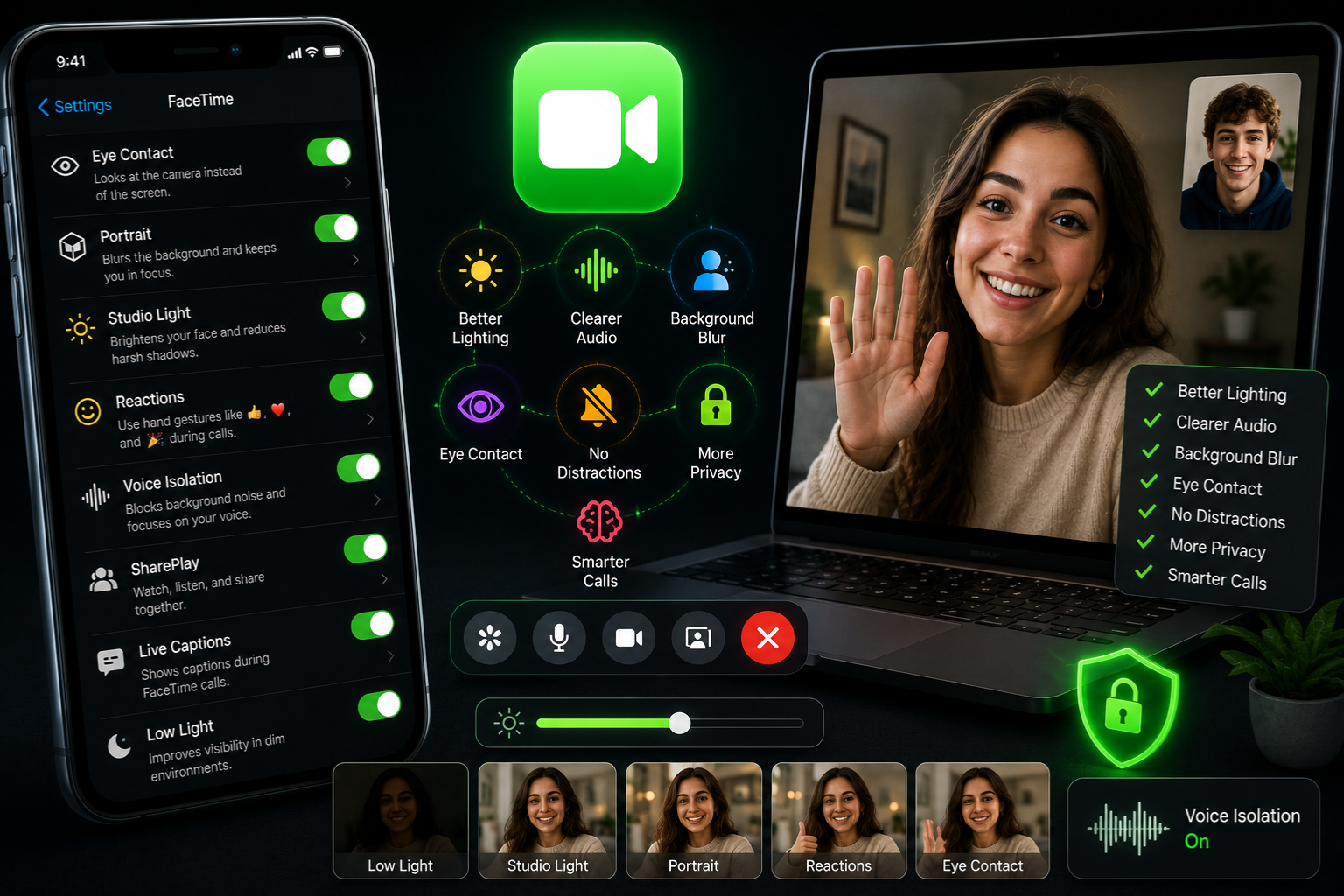
Dark FaceTime refers to using FaceTime with dark mode enabled on your Apple device, which changes the interface colors from bright whites to deep grays and blacks. This isn’t just a cosmetic preference — it actually changes how the entire FaceTime experience feels, especially during long calls or late-night video chats. The shift to darker tones is something millions of users have quietly made without even realizing how much it affects their daily screen time habits.
When you enable dark FaceTime through your iPhone or iPad display settings, the app’s background, menus, and overlays all shift to match the system-wide dark theme. This means less contrast shock when you switch from a bright environment to your screen, and a more cohesive visual experience overall. It’s one of those changes you don’t think you need until you’ve tried it for a week — and then you can’t imagine going back.
Enabling Dark Mode Correctly
To get dark FaceTime working on your device, go to Settings, then Display and Brightness, and select Dark. This applies the dark theme system-wide, which includes FaceTime automatically since Apple doesn’t offer a standalone dark mode toggle inside the FaceTime app itself. Once enabled, every time you open FaceTime, the interface will reflect that darker color scheme. You can also find more tips on mobile settings and iPhone display optimization to fine-tune how your device handles visual changes.
Some users prefer to schedule dark mode rather than keeping it on full-time. Under the same Display and Brightness menu, there’s an Automatic option that lets you set sunrise and sunset times — or custom times — so your phone switches to dark FaceTime mode in the evening without you having to touch anything. This is a genuinely useful feature for people who do calls across different time zones or tend to chat late into the night.
Why Eye Strain Actually Matters
Staring at a bright white screen during a two-hour FaceTime session puts real stress on your eyes. The blue light emitted from standard bright displays has been linked to eye fatigue, disrupted sleep patterns, and headaches — especially when you’re in a dim room looking at a high-contrast screen. Dark FaceTime significantly reduces the amount of bright light your eyes absorb during those calls, which translates to noticeably less fatigue by the end of the day.
Ophthalmologists and screen-health researchers have pointed this out for years: high brightness in low-light environments is one of the biggest contributors to digital eye strain. When your FaceTime background shifts from glaring white to soft dark gray, your pupils don’t have to work as hard to adjust. Over time, this is the kind of small change that adds up to real comfort, especially for people who spend multiple hours per day on video calls for work or family.
Battery Life and Dark FaceTime
One of the less obvious benefits of dark FaceTime is the potential battery savings — but this depends heavily on what kind of screen your device has. If you’re using an iPhone with an OLED display (iPhone X and later), dark pixels are literally turned off at the hardware level, which means the screen uses significantly less power when displaying dark colors. Running dark FaceTime on an OLED device during a long call can meaningfully extend how long your battery lasts.
On LCD screens, the situation is different. LCD panels use a backlight that stays on regardless of what color is displayed on screen, so dark mode doesn’t save power on older iPhones or iPads with LCD displays. Still, even on those devices, dark FaceTime reduces the visual intensity of the display, which many people find simply more comfortable. The battery benefit is a bonus for OLED users, but the comfort improvement is universal.
Camera Settings During Dark Calls
Here’s something that catches people off guard: dark FaceTime mode affects the interface, but your camera is still capturing your face in whatever lighting conditions you’re actually sitting in. If you’re in a dark room and using dark FaceTime, the person on the other end might struggle to see you clearly, even though your screen looks clean and minimal. The dark mode setting and your camera’s actual performance are two separate things.
To look good on dark FaceTime calls, you still need decent lighting on your face. A simple desk lamp positioned slightly to the side creates flattering, natural-looking light without blowing out your features. Natural window light works beautifully if you’re positioned facing the window rather than with it behind you. The interface around your video feed will be dark and clean, while your actual image remains bright and visible — that’s the ideal combination.
Scheduling Automatic Dark Mode
Apple’s automatic dark mode scheduling is one of the most practical features for regular FaceTime users. Instead of manually toggling dark FaceTime on and off, you can let the system handle it based on your daily routine. Go to Settings, Display and Brightness, Automatic, and then choose either Sunset to Sunrise or a Custom Schedule based on when you typically make calls.
For people who do late-night calls with family in different time zones, this is particularly useful. Your phone switches to dark FaceTime mode automatically as the evening approaches, so by the time you’re calling someone abroad at 9 PM, the interface is already adjusted. It removes one small friction point from your routine and ensures you’re never caught squinting at a too-bright screen during an evening call.
Dark FaceTime on iPad and Mac
Dark FaceTime works across Apple’s entire ecosystem, not just the iPhone. On iPad, the experience is particularly noticeable because of the larger screen surface — more dark interface means a much more dramatic visual change. For students and remote workers who use iPad for video calls, switching to dark FaceTime makes long study or meeting sessions considerably easier on the eyes. According to Apple’s accessibility research, display settings including dark mode play a significant role in reducing visual fatigue for extended screen use.
On Mac, dark FaceTime is equally straightforward. System Settings, Appearance, Dark — and the FaceTime desktop app follows suit. Mac users tend to appreciate this more than mobile users because desktop video calls often run longer, whether for work meetings or extended family catch-ups. The full-screen FaceTime experience on a 27-inch iMac in dark mode is a genuinely different, much gentler visual environment than the standard bright interface.
Focus Mode Integration
One clever pairing with dark FaceTime is Apple’s Focus Mode. When you set up a Sleep or Do Not Disturb focus, you can configure your device to automatically enable dark mode as part of that focus’s appearance settings. This means when your Sleep focus kicks in at 10 PM, your phone not only silences notifications but also switches to dark FaceTime mode automatically, without you doing anything.
This kind of layered automation is what makes Apple’s ecosystem genuinely useful rather than just feature-rich on paper. If you’re someone who often makes FaceTime calls before bed — catching up with a partner, calling parents, or winding down with a friend — having dark FaceTime activate alongside your evening focus mode removes all the manual steps. It just works, which is what good technology should do.
Accessibility Options for Dark Displays
Beyond standard dark mode, Apple offers additional accessibility settings that complement dark FaceTime. Increase Contrast, Reduce White Point, and Smart Invert are all options found under Settings, Accessibility, Display and Text Size. These tools let you push the dark FaceTime experience even further if you have light sensitivity, migraines, or other visual conditions that make bright screens uncomfortable.
Reduce White Point is particularly underrated — it lowers the maximum brightness of white elements on screen, which makes even standard dark mode feel softer. Pair this with dark FaceTime and you have an experience that’s genuinely comfortable for people with visual sensitivities. Many users discover these settings by accident and then wonder why they weren’t using them all along. The combination creates a display environment that feels like it was designed specifically for their eyes.
Night Shift and Dark FaceTime
Night Shift is a separate but related feature that works well alongside dark FaceTime. While dark mode changes the color scheme to darker tones, Night Shift shifts the color temperature of your display toward warmer yellows and oranges in the evening, reducing blue light exposure. Using both together during a late-night FaceTime call gives you a doubly eye-friendly experience.
The two settings don’t conflict — they stack. Your dark FaceTime interface shows deep gray and black tones, and Night Shift warms up those tones so they lean amber rather than cool gray. Many users find this combination extremely comfortable for evening calls, and it has the added effect of not disrupting your body’s melatonin production before sleep. It’s a small optimization, but if you’re someone who values sleep quality, it matters.
True Tone Display Interaction
True Tone is another Apple display technology that interacts with dark FaceTime in interesting ways. True Tone adjusts your screen’s color temperature in real time based on the ambient light in your environment, making the display look more like paper in different lighting conditions. When you’re using dark FaceTime with True Tone enabled, the dark interface adapts to feel natural in whatever lighting you’re sitting in.
In a warm, incandescent-lit room, your dark FaceTime interface will lean slightly warm. In cool office fluorescent light, it’ll stay cooler. This adaptive behavior means the dark mode experience isn’t static — it’s responsive to your actual environment. The result is a display that doesn’t look artificially dark or dramatically different from the surrounding room, which reduces the visual adjustment your brain has to make every time you glance at the screen.
Third-Party App Compatibility
Most third-party apps that you might use alongside FaceTime — messaging apps, note-taking tools, music players — support system dark mode and will follow your dark FaceTime settings automatically. This means switching to dark mode isn’t just an isolated change for video calls; it transforms the entire ambient experience of using your phone during and around those calls.
Where it gets inconsistent is with older or poorly maintained apps that haven’t been updated to support dark mode properly. Some will display correctly while others might show a mix of dark and light elements that looks unfinished. This is a developer issue, not an Apple one, and the number of apps with proper dark mode support has grown significantly since Apple introduced the feature. For most users, the compatibility experience today is seamless.
Privacy and Screen Visibility
Here’s a practical dark FaceTime tip that doesn’t get talked about enough: in public spaces, dark mode makes your screen significantly less visible to people nearby. A bright white FaceTime interface in a coffee shop practically broadcasts your call to everyone within ten feet. Dark FaceTime reduces that glow considerably, giving you a bit more visual privacy in shared spaces without having to cup your hand around the screen.
This isn’t a security feature in any technical sense — someone determined to see your screen can still do so. But the reduced brightness makes casual snooping much less likely, and it also means you’re not inadvertently lighting up the people sitting beside you. In a movie theater lobby, a late-night train, or a dimly lit restaurant, dark FaceTime is the considerate and practical choice.
Troubleshooting Dark Mode Issues
Sometimes dark FaceTime doesn’t behave the way you expect. The most common issue is that the interface reverts to light mode during a call even though dark mode is enabled in settings. This can happen if you have Automatic dark mode scheduled and the call spans the switching time, or if an app update has temporarily reset certain display preferences. A quick fix is to go back into Settings, Display and Brightness, and toggle dark mode off and back on.
Another occasional issue is that FaceTime’s in-call overlay — the controls that appear during a live call — display incorrectly in dark mode on older iOS versions. If you’re running a version of iOS older than 15, some dark FaceTime elements may not render correctly. Updating to the latest iOS version resolves most of these issues, as Apple has progressively improved dark mode integration across all native apps including FaceTime.
Dark FaceTime for Work Calls
Professional users have a particularly strong case for dark FaceTime. When you’re doing back-to-back video meetings throughout the day, the cumulative eye strain from bright displays adds up fast. Switching to dark FaceTime for work calls is one of those low-effort, high-return adjustments that remote workers should make immediately if they haven’t already. It doesn’t affect how you look on camera, doesn’t change call quality, and costs nothing.
Pairing dark FaceTime with a good headset, stable internet, and proper camera lighting creates a professional video call setup that’s both polished and comfortable. The dark interface keeps your focus on the conversation rather than the screen itself, which is exactly where your attention should be during a business call. It’s a small thing that signals you’ve thought about your setup — and that kind of attention to detail does get noticed.
Making the Most of Dark Calls
Getting the most from dark FaceTime means thinking about it as part of a broader approach to screen health and call quality rather than just a display toggle. Combine it with proper room lighting for your camera, Night Shift for evening calls, True Tone for ambient adaptation, and Focus Mode for automation, and you have a genuinely optimized video calling environment. Each piece complements the others.
The people who benefit most from dark FaceTime tend to be those who make calls regularly — daily family check-ins, remote work meetings, long-distance relationships, or regular friend groups who stay connected over video. For casual once-a-week callers, the difference is nice but not transformative. For frequent callers, dark FaceTime is the kind of quality-of-life improvement that quietly makes a real difference over weeks and months of use.
FAQ
What exactly is dark FaceTime and how do I turn it on?
Dark FaceTime is simply FaceTime running with your device’s dark mode enabled. To turn it on, go to Settings, then Display and Brightness, and select Dark. FaceTime automatically adopts the dark interface since it follows your system-wide display settings.
Does dark FaceTime save battery life on my iPhone?
It depends on your device. On iPhones with OLED screens (iPhone X and newer), dark FaceTime can meaningfully reduce battery drain because dark pixels are physically turned off. On LCD-screen devices, battery savings are minimal or nonexistent, though the visual comfort benefit still applies.
Will dark FaceTime affect how I look on camera during calls?
No. Dark FaceTime only changes the interface around your video feed — buttons, backgrounds, and overlays. Your camera performance and how you appear to the other person are not affected by your dark mode setting. Lighting in your physical environment is what determines how you look on camera.
Can I use dark FaceTime on my Mac and iPad too?
Yes. Dark mode is available across iPhone, iPad, and Mac. On iPad, go to Settings, Display and Brightness, Dark. On Mac, go to System Settings, Appearance, and choose Dark. All devices will then show FaceTime in dark mode whenever you open the app.
Conclsuion
Dark FaceTime is one of those features that sits right at the intersection of comfort, practicality, and smart device use. It reduces eye strain during long calls, can extend battery life on OLED devices, gives you a bit more visual privacy in public, and creates a more cohesive, polished interface experience across all your Apple devices. Once you’ve made the switch, it’s genuinely hard to go back to the glaring brightness of standard mode.
The best part is how little it costs you to try. No apps to download, no settings buried in confusing menus, no technical knowledge required. A few taps in your display settings and dark FaceTime is running. From there, you can layer in Night Shift, True Tone, Focus Mode automation, and accessibility enhancements to build a video calling experience that feels like it was designed specifically around your habits and preferences.
Whether you’re a remote worker grinding through daily video meetings, a student doing study sessions with friends, or someone who just likes catching up with family after dark, dark FaceTime makes the experience noticeably better. It’s the kind of small, thoughtful change that good technology should always make easy — and Apple has done exactly that.