

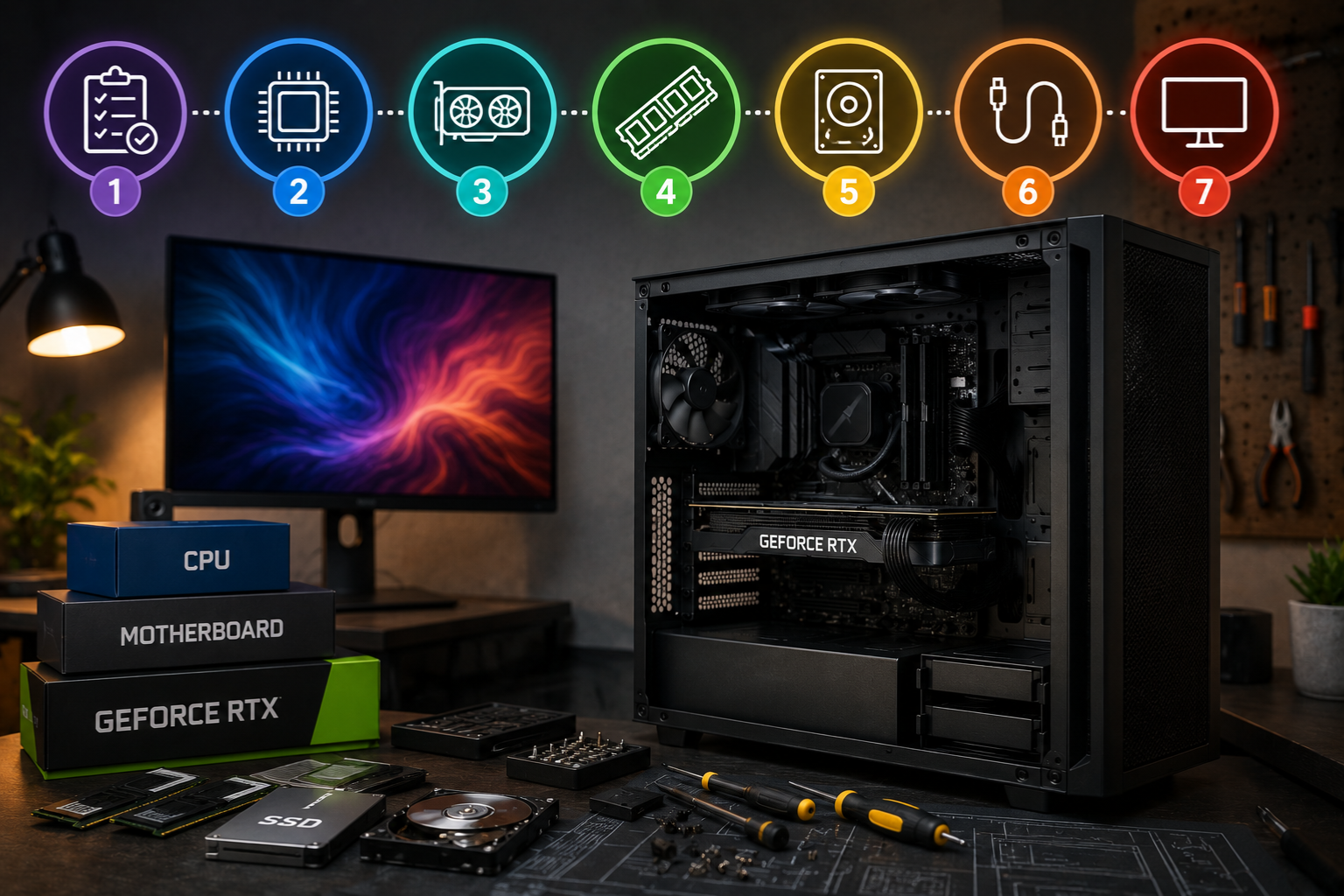
Planning your perfect workstation build? Discover expert tips, component choices, and setup strategies to create a high-performance machine that lasts.
Before you spend a single rupee or dollar, you need a solid plan. A workstation build without planning is like constructing a house without a blueprint — you’ll hit walls you never saw coming. Start by identifying exactly what you need the machine for. Video editing, 3D rendering, software development, and data analysis all have very different hardware requirements, and confusing them leads to expensive mistakes.
Think about your workload first. A machine built for CAD work needs a certified GPU and tons of RAM. A developer’s workstation build looks completely different — faster single-core speeds, lots of storage, maybe less GPU power. Sit down and make a list of the software you’ll run daily, then look up its recommended specs. That list becomes your hardware shopping guide.
Choosing the Right Processor
The CPU is the brain of any workstation build, and getting this wrong will haunt you for years. Intel’s Core i9 and AMD’s Ryzen Threadripper lines are both strong options depending on your workload. If you’re doing heavily threaded work like video encoding or 3D rendering, more cores matter a lot. For tasks that are single-threaded — like some older software tools — raw clock speed wins.
AMD Ryzen processors have been dominating the workstation scene lately because of their price-to-performance ratio. A Ryzen 9 7950X gives you 16 cores and handles multitasking like a beast. Intel’s 13th and 14th gen chips are no slouch either, especially if you’re working with software that’s optimized for Intel architecture. Do your homework before committing.
RAM Selection and Speed
Memory is one of those components people either over-buy or dangerously under-buy. For a serious workstation build, 32GB is the bare minimum today. If you’re running virtual machines, large datasets, or professional creative software, 64GB or even 128GB starts making sense. Don’t cheap out on RAM — it directly impacts how smoothly your system handles multitasking.
Speed matters too, but not infinitely. DDR5 RAM is the current standard for newer platforms and offers noticeably better bandwidth than DDR4. For an AMD workstation build on the AM5 platform, DDR5 is mandatory. Check your motherboard’s QVL (qualified vendor list) before buying RAM — not all sticks play nice with every board, and compatibility issues are a headache nobody wants.
For people researching technology solutions for professional workstations, this guide on technology solutions for professionals covers broader IT infrastructure choices worth reading alongside your component research.
Storage Drives and Speed
Storage setup can make or break your daily workflow. An NVMe SSD should be your primary drive for the operating system and all active projects. The difference between a SATA SSD and an NVMe drive is massive — we’re talking 3,500 MB/s versus 550 MB/s read speeds. For a professional workstation build, that gap is completely noticeable when loading large files.
Use a tiered storage strategy. Keep a fast NVMe as your boot and working drive, then add a larger SATA SSD or HDD for archiving finished projects and backups. A 2TB NVMe for active work paired with a 4–8TB HDD for storage is a setup many professionals swear by. Don’t forget to budget for a good backup solution too — losing work to a dead drive is a painful and avoidable experience.
GPU Selection for Professionals
Not every workstation build needs a gaming GPU. Depending on your field, a professional-grade card like an NVIDIA RTX 4000 Ada or an AMD Radeon Pro might serve you better than a consumer GeForce card. Professional GPUs come with certified drivers for software like AutoCAD, SolidWorks, and DaVinci Resolve — that certification matters when your livelihood depends on stability.
That said, if you’re doing video editing or content creation rather than precision engineering, a high-end consumer GPU like the RTX 4080 or 4090 is often better value. These cards offer more raw performance per dollar and work beautifully with Adobe Premiere, Blender, and similar tools. According to NVIDIA’s official workstation GPU comparison, the choice between consumer and professional cards really comes down to software certification requirements and driver stability needs.
Picking the Right Motherboard
The motherboard ties everything together, so this isn’t a place to cut corners on a serious workstation build. Look for boards with good VRM quality — this directly impacts CPU stability under sustained load. A cheap motherboard with a high-end processor is a combination that leads to throttling, crashes, and short component lifespan.
For AMD builds, X670E boards offer PCIe 5.0 support for both GPU and NVMe slots — future-proofing your investment nicely. Intel users on LGA 1700 should look at Z790 boards for the best feature set. Pay attention to connectivity too: Thunderbolt ports, USB 3.2 Gen 2, and enough PCIe lanes for your expansion needs. A workstation build often has more peripherals than a gaming rig, so connectivity options genuinely matter.
Power Supply Unit Essentials
An underpowered or low-quality PSU can destroy expensive components. This is one area where buying cheap is genuinely dangerous for your workstation build. Aim for an 80+ Gold or Platinum rated unit from reputable brands like Seasonic, Corsair, or be quiet!. These manufacturers test their units rigorously and stand behind them with solid warranties.
Calculate your actual power needs using an online PSU calculator — add up TDP values for your CPU and GPU, then add 20–30% headroom for spikes and future upgrades. A high-end workstation build with a Threadripper and dual GPUs might need 1200W or more. Don’t guess — under-speccing the PSU is a common mistake that causes random crashes and instability that’s surprisingly hard to diagnose.
Cooling Solutions That Work
Heat is the enemy of performance and component longevity. For a workstation build that runs under sustained load — rendering overnight, compiling large code projects, running simulations — you need serious thermal management. A 240mm or 360mm AIO liquid cooler handles most high-end CPUs well. Air coolers like the Noctua NH-D15 are also excellent if you prefer reliability over aesthetics.
Case airflow matters just as much as the CPU cooler itself. Good intake fans at the front and exhaust at the rear create positive pressure and keep temperatures controlled. Avoid cases with poor airflow just because they look sleek. For a workstation build that’s running eight hours a day, five days a week, thermal design isn’t optional — it’s fundamental to how long your components last.
Case Selection and Form Factor
The case houses your entire workstation build, and the right choice depends on your component list and workspace constraints. Full tower cases offer maximum expandability — more drive bays, better airflow, room for large coolers and multiple GPUs. Mid-towers are a good balance of space and footprint for most users. Smaller ITX cases are possible for workstations but come with tradeoffs in cooling and expansion.
Look for cases with good cable management options, dust filters on all intakes, and tool-less drive installation if possible. Brands like Fractal Design, Lian Li, and be quiet! make cases specifically appreciated in professional environments for their build quality and quiet operation. A workstation runs all day — fan noise adds up, and a well-damped case makes the workspace significantly more pleasant.
Operating System Choices
Windows 11 Pro is the default choice for most workstation build users because of software compatibility. If your workflow involves professional creative tools, engineering software, or Microsoft Office integration, Windows just makes life easier. The Pro version adds features like Hyper-V for virtualization, BitLocker encryption, and Remote Desktop — all genuinely useful in professional contexts.
Linux is a serious alternative worth considering, especially for developers and data scientists. Ubuntu, Fedora, and Pop!_OS all run beautifully on modern hardware and offer performance advantages for certain workloads. macOS isn’t really an option for a custom build unless you’re diving into the Hackintosh world, which comes with its own headaches. Pick the OS your critical software supports best — everything else can adapt.
Network and Connectivity Setup
A workstation build for professional work needs reliable, fast network connectivity. Gigabit Ethernet is the minimum — most modern motherboards include it. If you’re working with large files over a NAS or transferring data between machines frequently, 2.5GbE or even 10GbE is worth considering. These faster Ethernet standards have dropped significantly in price over the last few years.
Wi-Fi 6 or Wi-Fi 6E is acceptable as a secondary option but shouldn’t be your primary connection if you’re doing serious work. Wired connections are more stable, have lower latency, and don’t suffer from the wireless interference issues that can interrupt transfers or video calls at the worst moments. Add a USB hub with plenty of ports too — professionals always have more peripherals than they initially expect.
Monitor and Display Setup
Your display setup is often undervalued in a workstation build, but it dramatically affects daily productivity. A 4K monitor gives you more screen real estate for complex layouts, code editors, and design work. Color accuracy matters for creative professionals — look for monitors covering 99% sRGB or DCI-P3 for photo and video work. IPS panels generally offer better color reproduction than VA or TN alternatives.
Dual monitor setups are extremely common for productivity workstations. Having your main work on one screen and reference materials, communication tools, or secondary applications on another genuinely speeds up workflow. Some professionals even run three monitors. Invest in a good monitor arm to keep your desk clean and allow easy positioning adjustments — your neck will thank you after long sessions.
Peripheral Choices Matter
Keyboard and mouse choices seem minor compared to CPU and GPU decisions, but for a workstation build you’ll use eight-plus hours daily, ergonomics are important. Mechanical keyboards with tactile switches offer better feedback and are more comfortable for extended typing. Brands like Logitech MX Keys, Keychron, and Das Keyboard make excellent options for professionals.
An ergonomic mouse reduces wrist strain dramatically over time. The Logitech MX Master series is practically the gold standard for productivity users — excellent ergonomics, programmable buttons, and great tracking on almost any surface. A good desk mat ties the whole setup together and gives your mouse consistent tracking across its full range of motion.
Budget Allocation Strategy
Smart budget distribution separates a great workstation build from an average one. The rough guideline is to put the most money into whichever component is your primary bottleneck. Video editors should prioritize GPU and RAM. Developers benefit most from fast storage and CPU. Data scientists might need maximum RAM above all else.
Don’t overspend on aesthetics at the expense of performance. RGB lighting and fancy cases look nice, but that money spent on better RAM or a faster NVMe will impact your work every single day. Set a realistic total budget, prioritize the components that matter most for your specific use case, then fill in the rest. A balanced workstation build consistently outperforms a lopsided one.
Assembly and Cable Management
Actually putting your workstation build together requires patience more than technical skill. Follow the motherboard manual carefully — it tells you exactly where every component goes and in what order. Install the CPU cooler before putting the motherboard in the case if possible; it’s much easier with open access. Take your time with thermal paste application — a pea-sized amount in the center of the CPU is all you need.
Cable management isn’t just about looks — it directly affects airflow. Tucking cables behind the motherboard tray and using Velcro ties keeps pathways clear for your fans to do their job properly. A clean build also makes future upgrades and troubleshooting much easier. Rushing assembly leads to mistakes like forgetting a power connector — take the extra time to do it properly.
BIOS Configuration Basics
Once your workstation build is physically complete, the BIOS needs some attention before you install the OS. Update to the latest BIOS version first — manufacturers release updates that fix compatibility issues, improve memory stability, and sometimes unlock performance. Enable XMP or EXPO profiles for your RAM so it runs at its rated speed rather than the default slower speed.
Check your storage configuration — ensure your NVMe drive is in the fastest PCIe slot and set to the correct mode. Enable virtualization support if you plan to run VMs. Set your fan curves to balance noise and cooling based on your workload preferences. These BIOS tweaks take 20 minutes but make a meaningful difference to how your system performs and sounds day to day.
Testing and Benchmarking Performance
Before calling your workstation build complete, stress test it thoroughly. Run Prime95 or Cinebench R23 for CPU stability testing. Use FurMark or 3DMark for GPU stress testing. Monitor temperatures throughout — CPUs should stay under 90°C under full load, and ideally under 80°C for sustained work. If temperatures are too high, reseat the cooler or improve case airflow.
Benchmark your storage speeds with CrystalDiskMark to verify you’re getting the performance you paid for. Check RAM is running at its rated XMP speed in CPU-Z. Run Memtest86 overnight to catch any memory errors before you start trusting the machine with important work. A well-tested workstation build gives you confidence — you know it’s stable before it’s handling your livelihood.
FAQs
Q1: How much should I spend on a workstation build?
It depends heavily on your use case. A capable entry-level professional workstation build starts around $1,500–2,000. High-end configurations for 3D rendering, simulation, or video production can run $4,000–10,000 or more. Focus your budget on the components that matter most for your specific workflow.
Q2: Is a workstation build better than buying a pre-built workstation?
Building your own gives you better value, more customization, and easier future upgrades. Pre-built workstations from Dell, HP, or Lenovo offer convenience and warranty support, but you pay a premium for that. For most technically confident users, a custom workstation build is the smarter long-term investment.
Q3: What’s the biggest mistake people make in a workstation build?
Under-speccing RAM and storage while overspending on GPU. Many professionals need more memory and faster storage far more than they need the absolute latest graphics card. Match your hardware decisions to your actual workload, not benchmarks from use cases that don’t match yours.
Q4: How long should a good workstation build last?
A properly specced workstation build should serve you well for five to seven years with minor upgrades. Adding RAM, swapping storage, or upgrading the GPU mid-cycle extends the life further. The CPU and motherboard platform usually determine the true lifespan ceiling.
Q5: Do I need ECC RAM for a workstation build?
For most creative professionals and developers, regular DDR5 RAM is perfectly fine. ECC (Error-Correcting Code) RAM is important for scientific computing, financial modeling, or any application where data integrity is absolutely critical. Platforms supporting ECC typically require specific CPUs and motherboards, so plan for it from the start if needed.